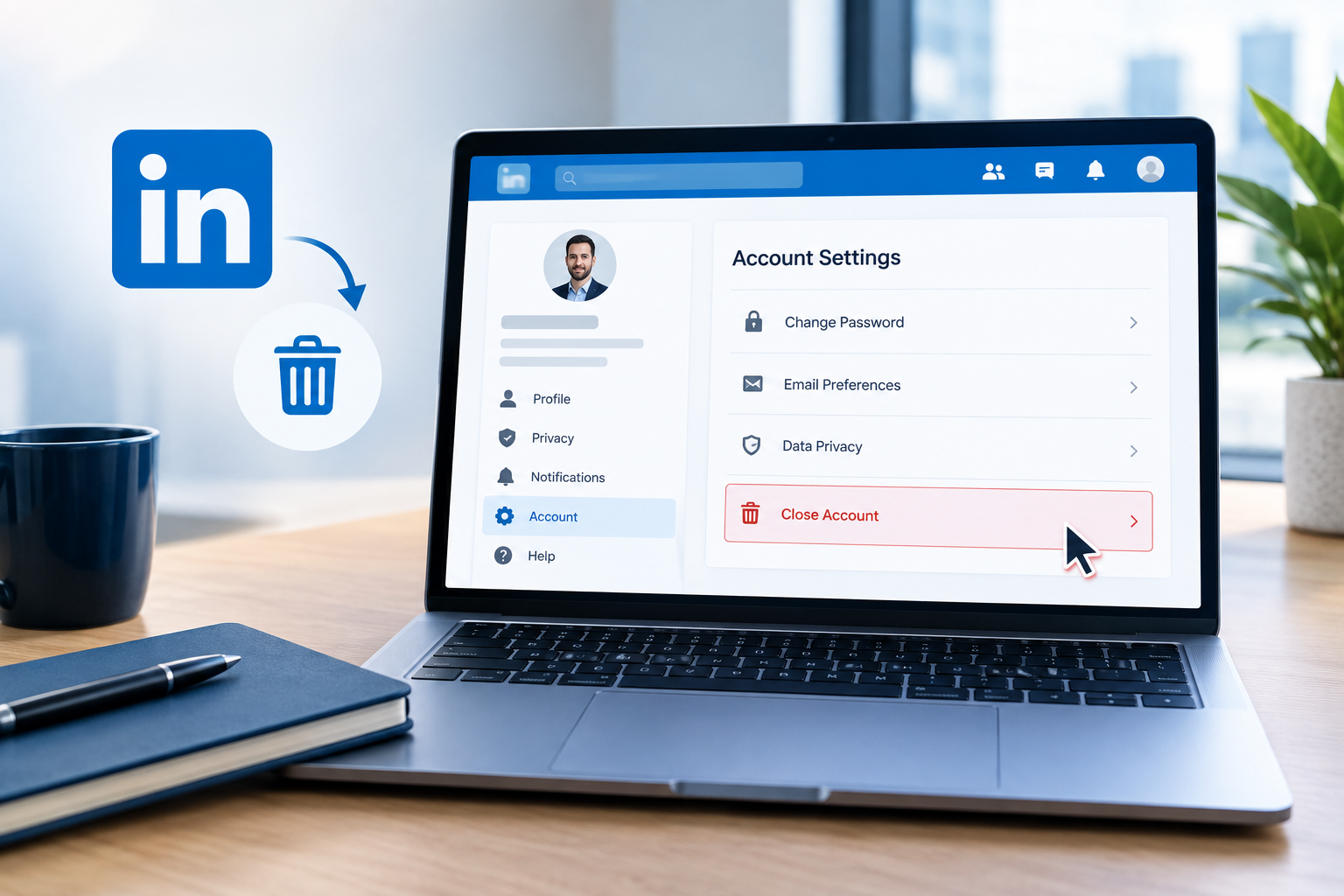
How to Delete LinkedIn Account Permanently: Step-by-Step Guide
If you no longer want to use LinkedIn, you can permanently delete your account directly from LinkedIn settings. Before deleting your account, remember that closing your account can remove your profile and access to your LinkedIn data.
How to Delete Your LinkedIn Account
Follow these steps to delete your LinkedIn account:
Step 1: Log in to LinkedIn
Open LinkedIn on your computer or mobile browser and sign in to the account you want to delete.
Step 2: Open Settings & Privacy
Click your profile picture and select Settings & Privacy.
Step 3: Go to Account Preferences
From the settings menu, open Account preferences.
Step 4: Find the Account Management Section
Scroll down to the account management options and look for Close account.
Step 5: Select a Reason
LinkedIn may ask you to select a reason for closing your account. Choose the option that best describes why you want to delete your account.
Step 6: Confirm Account Closure
Enter your LinkedIn password if requested and follow the on-screen instructions to confirm the account closure.
